Using the App
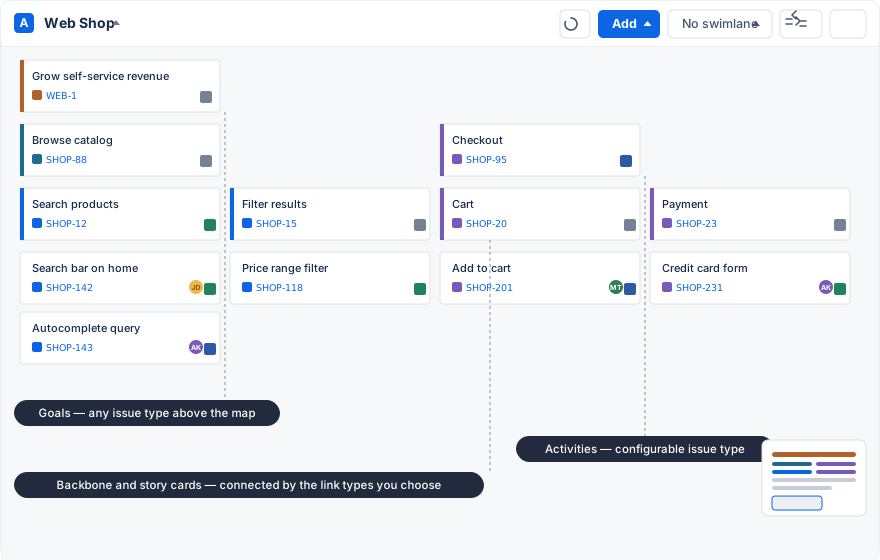
An Advanced story map has up to four layers: an optional goal layer, an optional activity layer, a backbone of steps, and the Jira issues that describe the work beneath each step.
Organize Jira issues
Drag backbone items left or right to change their order without changing the issues beneath them. Drag an issue in the story layer to reorder it or associate it with another backbone item.
Issues cannot be dragged between hierarchy layers. Use distinct Jira issue types for the activity, backbone, and story layers so the structure remains understandable.
You can assign a color to each backbone item. Enable Settings → Display → Column coloring when the complete column should inherit that color.
Plan sprints and releases
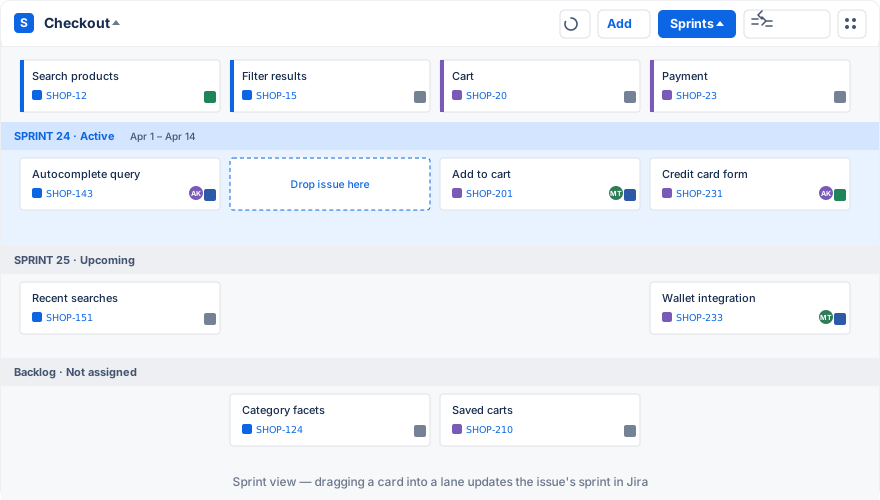
Open the Swimlanes menu and select Sprints or Releases. The available lanes come from the Jira board connected to the map.
Drag an issue into a sprint or release lane to update its Jira Sprint or Fix Version field. The map updates immediately, which makes it possible to rearrange several issues during a planning session.
If sprint or release lanes are unavailable, check the connected board and the relevant Jira project settings in Common Issues & Questions.
Use custom swimlanes
Free-form custom swimlanes are useful when a sprint or release is too precise. For example, a roadmap can use lanes such as “Near term” and “Later” while the delivery details are still uncertain.
Advanced Story Maps can also use supported single-select Jira custom fields as swimlanes. Configure the field in the map settings, then drag issues between its values. See Custom Field Swimlanes for the complete setup.
Update estimates
When the connected Jira board uses story-point estimation, estimates appear on the issue cards. Select an estimate to edit it. If swimlane statistics are enabled in Settings, the totals update with the changed estimate.

Add activities or goals
Advanced Story Maps supports optional layers above the backbone for activities, goals, or another Jira hierarchy level. See Hierarchy and Top-level Elements to configure and use it.
Filter the map
A dynamic map exposes the quick filters from its connected Jira board through the filter control beside the swimlane menu. Filters change which story-layer issues are visible; they do not change the backbone.
Use separate static maps when different planning views need different backbones.