Advanced Story Maps documentation
Export Features
PNG export is available in Advanced Story Maps. It saves a visual snapshot of the map for a presentation, planning record, or page that cannot embed the live Jira view.
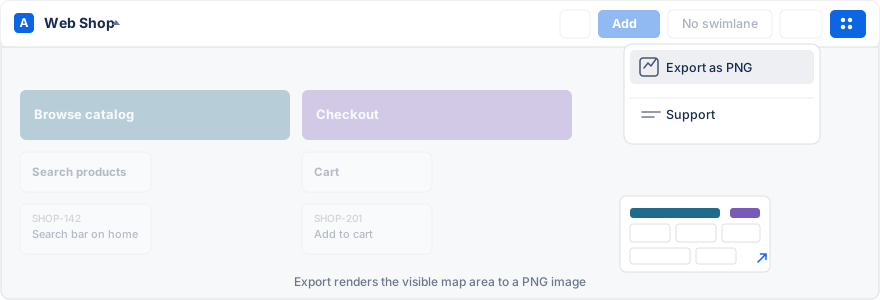
Export a map
- Open the map and arrange the view you want to capture.
- Apply any filter or swimlane view that should appear in the image.
- Open the More actions menu (the ⋯ icon in the upper-right corner).
- Select Export as PNG.
- Save the generated PNG file.
The image represents the current visual state. It is not a live view and does not update when Jira issues change. Review the image before sharing it because visible issue summaries and fields can contain internal information.
For structured Jira data or reporting, use Jira’s own export and reporting tools. Advanced Story Maps does not export PDF or CSV files.
Next Steps
- Board Management - Manage your Jira board connections
- Settings - Configure export preferences
- Admin Guide - Set up organizational export policies