Jira’s default hierarchy has three levels: epics at the top, stories, tasks and bugs in the middle, and subtasks at the bottom. Anything above an epic, such as an initiative or a goal, needs Jira Premium or Enterprise, where an admin can add levels to the work type hierarchy. On Free and Standard, the epic is the top. Teams there use issue links or an app to group epics under something bigger.
Atlassian has renamed some of this: issues are now work items, issue types are work types and projects are spaces. Older documentation, and many Jira sites, still use the old names.
Jira’s default hierarchy levels: epic, story, subtask
Every Jira Cloud site starts with the same three levels, from the top down:
| Default work types | What it’s for |
|---|---|
| Epic | A large body of work, usually several weeks to a few months, broken into smaller items |
| Story, Task, Bug | The work a team plans and finishes in a sprint or on a board |
| Subtask | A step inside one story, task or bug |
Each work item has one parent, set in the Parent field. (On older sites this was the separate “Epic Link” field.) A story can belong to one epic; a subtask belongs to one story, task or bug.
Two things are fixed on every plan:
- Nothing goes between Epic and Story. Extra levels can only be added above Epic.
- Subtasks are the bottom. A subtask can’t have its own subtasks.
So when people ask how to put “features” between epics and stories, the usual answer on Premium is to rename Epic to Feature and add a new level above it.
What sits above an epic?
Jira itself doesn’t ship a level above Epic. (Large organisations sometimes add Jira Align, Atlassian’s separate product for planning across many teams, which manages themes and portfolio epics above the Jira epic.) You name the level. The common choices:
- Initiative: a cross-team effort made of several epics, often one per quarter or half-year.
- Theme or objective: a broad goal that initiatives or epics serve.
- Goal, outcome or activity: the higher-level step a user or the business is trying to achieve.
The name matters less than one decision: does the level above the epic need to be a real Jira work item, with an owner, a status and child items that roll up into it? Or is it a grouping, so you can filter and talk about related epics together? That decision, and your Jira plan, decide which route fits.
How to add levels above Epic (Jira Premium and Enterprise)
On Jira Premium and Enterprise, a Jira admin can add levels to the top of the work type hierarchy. The new level is a real parent: epics take it as their Parent, and Jira’s Plans feature (formerly Advanced Roadmaps) can roll work up through it.
- Create the work type, for example Initiative, and add it to the work type scheme used by the spaces that need it.
- Add the level. Go to Settings, then Work items, then Work type hierarchy. Create a level; Jira places it at the top. Assign the Initiative work type to it.
- Put the Parent field on the screens for each work type in the hierarchy, so people can set an epic’s initiative.
- Use a plan to see the levels together. In Plans, initiatives, epics and stories show as one tree with roll-ups and a timeline.
Read the warnings before you change anything. Atlassian’s documentation says changes to the hierarchy:
- apply to every company-managed space on the site, not just one;
- break existing parent and child relationships between work items;
- can’t be undone.
Plan the levels once, agree them with the other teams on the site, and make the change before people start linking work.
Best when: you’re already on Premium, several teams share the same structure, and you want roll-ups and timelines in Plans.
Grouping epics on Jira Free and Standard
On Free and Standard, Epic is the top level and you can’t add another. Teams use three workarounds, and each one stops working at some point.
Keep epics as the top. Make epics bigger and accept that the top of your plan is the epic. This is fine for one team with one product. It stops working when you need to see one goal across several teams.
Use issue links. Create an Initiative work type at the story level and link epics to it, with “relates to” or a link type you add, such as “is part of”. Links work on every Jira plan. The limits: a linked item isn’t a parent, so Jira won’t show a tree, roll up progress or estimates, or put the initiative in an epic’s Parent field. You’ll find linked epics with JQL (issue in linkedIssues(...)) rather than in a hierarchy view.
Use labels, components or a custom field. Tag epics with the initiative they serve. This is good for filters, dashboards and boards. But the tag isn’t a work item, so it has no owner, status, description or due date of its own.
| Route | Jira plan | Real work item at the top | Tree view | Roll-up |
|---|---|---|---|---|
| Levels above Epic | Premium, Enterprise | Yes | In Plans | In Plans |
| Epics as the top | Any | n/a | n/a | n/a |
| Issue links | Any | Yes | No | No |
| Labels, components, fields | Any | No | No | No |
| Goal row on a story map (below) | Any, with the app | Yes | On the map | Stories to epics |
A goal row above your epics on a story map (any Jira plan)
A story map lays a product out as a user journey: the big steps across the top, the backlog underneath. Advanced Story Maps for Jira, the app we build, can add a row above that backbone for goals, initiatives or activities. It works on Jira Standard, because it doesn’t depend on Premium’s hierarchy.
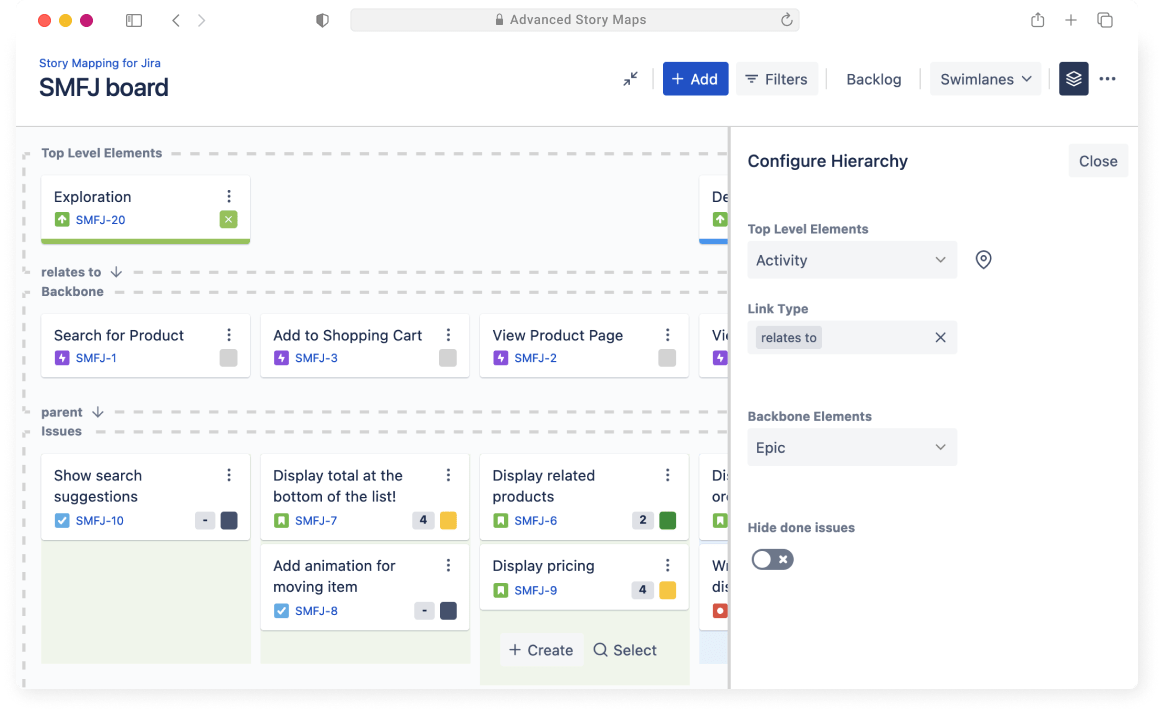
The map shows three levels:
- Top-level row: any Jira work type you choose, such as Initiative, Goal or Activity.
- Backbone: your epics.
- Stories underneath each epic, through Jira’s normal Parent field.
How the top row connects to the epics is your choice:
- On Free or Standard, pick an issue link type, such as “relates to”. When you drag an epic under a goal on the map, the app creates or updates that link in Jira, so the structure lives in Jira and not only in the app.
- On Premium, turn on the app’s Premium features and choose Parent (built-in). The map then uses the levels you added above Epic.
To set it up:
- Open the map, then Settings, then the Hierarchy tab.
- Choose the work type for the top-level row.
- Choose the link type that connects it to the backbone (or Parent on Premium).
- Use Add to create goals, then drag epics beneath them.
The hierarchy docs cover the details, including showing or hiding the row without losing its setup.
What it doesn’t do: it isn’t a timeline or a portfolio tool. Progress rolls up from stories to their epics; the top row groups and orders epics so a team can see which goal each one serves. If you need multi-level roll-ups across many teams, Premium and Plans are built for that.
The top-level row is an Advanced Story Maps feature. For a wider view across several projects, see creating a portfolio map.
Best when: you’re on Standard, or you want goals visible where the team plans the backlog, not in a separate plan.
Which approach fits your Jira plan?
- On Premium, with several teams sharing a structure: add levels above Epic and use Plans for roll-ups. If you also story-map, point the map at the same hierarchy.
- On Standard, with one or a few teams: a goal row on a story map gives you a real top level, linked in Jira, without upgrading.
- You only need to filter by initiative: a label or a select field is enough.
- You’re not sure yet: keep epics as the top, and link them to an Initiative work type. If you move to Premium later, those links tell you exactly which Parent relationships to set.
Jira hierarchy: common questions
What are the hierarchy levels in Jira? Three by default: Epic at the top, then Story, Task and Bug, then Subtask. Premium and Enterprise can add levels above Epic.
What is higher than an epic in Jira? Nothing in Jira itself, by default. On Premium and Enterprise you can add a level above Epic and name it, usually Initiative. On Free and Standard, teams use issue links, labels, or an app such as Advanced Story Maps.
Can I add a level between epic and story? No. Jira only adds levels above Epic. To get Initiative, Feature and Story, rename Epic to Feature on Premium and add Initiative above it.
Can a story have more than one epic? No. A work item has one parent. Use issue links to show that a story also relates to other work.
Do team-managed spaces support levels above Epic? Atlassian documents the hierarchy settings for company-managed spaces. Team-managed spaces keep their own three-level structure, so test with a team-managed space before you rely on extra levels there.
Is an initiative the same as a theme? Not in Jira, which has neither by default. Teams usually use “initiative” for a body of work with an end, and “theme” for a lasting goal that several initiatives serve.
Advanced Story Maps is on the Atlassian Marketplace with a free trial. Or read the worked example of user story mapping in Jira first.
Related reading
- User story mapping in Jira: a worked example A step-by-step worked example: agree the backbone, place the stories, and slice a release.
- How to do cross-project releases in Jira Compare four ways to plan releases across several Jira projects and pick the one that fits.
- How to use custom fields on cards effectively Show the Jira fields that matter directly on the cards in an Advanced story map.
- Creating a portfolio map with Advanced Story Maps for Jira Use a story map as a lightweight portfolio view above the delivery backlog.
- Story Maps for Jira: user story mapping in Jira What the map is for and how it connects planning back to the issues in Jira.
- Introducing the all new Story Maps for Jira The dynamic maps, quick add, filters and zoom improvements in the current app.
New to the map? Start with the setup guide, then compare Story Maps for Jira and Advanced Story Maps.
Install Story Maps for Jira
Story Maps for Jira is available from the Atlassian Marketplace. Install it on your Jira site and open it from any Jira Software project.
Install the app