Why Forge
Atlassian has been moving its app platform from Connect to Forge for a while now, and we have made the move with it. Forge is where Atlassian is investing, and it suits a focused app like Story Maps: the app runs on Atlassian’s own infrastructure, updates are delivered automatically, and there is no separate service for us to run or for you to trust.
A bigger Story Maps
Moving to Forge was also the moment to close much of the gap between our two editions. A lot of what used to be available only in Advanced Story Maps is now part of Story Maps for Jira:
- Multiple maps per project. Keep a separate map for each team, product area, or planning horizon, and mark the one that opens by default. Each map has its own board, hierarchy, and settings.
- Configurable hierarchy. Choose the issue types and issue-link types that make up the backbone and the activities, so the map matches how your Jira is already set up rather than the other way around.
- Tree view. Switch from the visual map to a table of Issue, Summary, and Status, indented from activities down to issues. It is easier to read on large maps and works better with screen readers.
The familiar parts are all still there — sprint and release swimlanes, maps from any agile board (including boards that span several projects), and unified release swimlanes when projects share a version name.
What is still in Advanced
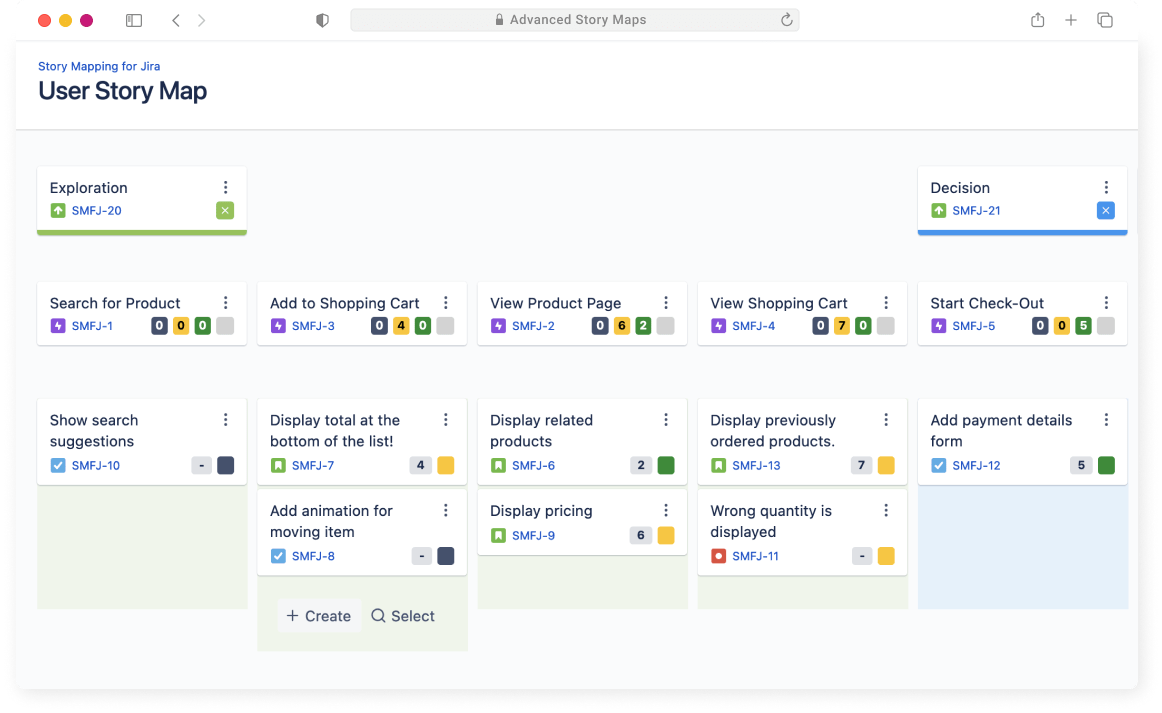
Advanced Story Maps made the move to Forge as well. It remains the edition for teams that need custom-field swimlanes, goal issues, iteration timeframes, configurable card layouts, statistics, and PNG export. If you are not sure which edition fits, compare the two editions.
Nothing to migrate
Your data stays where it is. The Forge app reads and writes the same Jira properties as the Connect app, in the same format. Your maps, hierarchy and configuration are not copied anywhere, and there is nothing to export or import. They are already where the Forge app looks.
How to upgrade
The update is ready now. Open the in-product Marketplace in Jira (Apps → Manage apps), find Story Maps, and press Update. There is no migration step to run and nothing to reconfigure. Once you are on Forge, future updates arrive through Atlassian automatically.
If you would like us to check anything on your site, or you have questions about the move, get in touch.
Related reading
- Jira hierarchy: levels and what sits above an epic The three default levels, adding levels above Epic on Premium, and grouping epics on Free and Standard.
- User story mapping in Jira: a worked example A step-by-step worked example: agree the backbone, place the stories, and slice a release.
- How to do cross-project releases in Jira Compare four ways to plan releases across several Jira projects and pick the one that fits.
- How to use custom fields on cards effectively Show the Jira fields that matter directly on the cards in an Advanced story map.
- Creating a portfolio map with Advanced Story Maps for Jira Use a story map as a lightweight portfolio view above the delivery backlog.
- Story Maps for Jira: user story mapping in Jira What the map is for and how it connects planning back to the issues in Jira.
- Introducing the all new Story Maps for Jira The dynamic maps, quick add, filters and zoom improvements in the current app.
New to the map? Start with the setup guide, then compare Story Maps for Jira and Advanced Story Maps.
Install Story Maps for Jira
Story Maps for Jira is available from the Atlassian Marketplace. Install it on your Jira site and open it from any Jira Software project.
Install the app